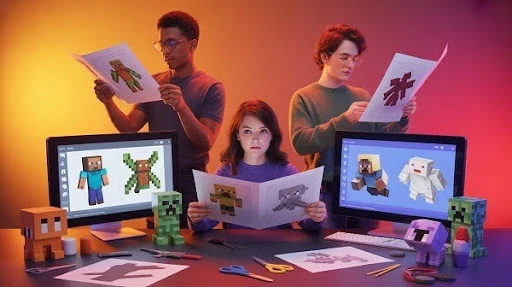
If you want 3D paper models of your Minecraft stuff, paper is still the easiest way to keep the game’s look intact. A basic printer can reproduce the textures and colors that most affordable 3D prints struggle to match.
The good news is you do not have to hand-draw nets or guess fold lines. There are tools that generate printable templates for characters, mobs, and blocks, and then it’s just cutting, folding, and gluing.
What You Need So the Model Doesn’t Feel Flimsy
You can technically do this with printer paper and a glue stick. You will hate the result.
Use this instead:
- Paper: 160–220 gsm cardstock for most pieces. 120–160 gsm for tiny parts.
- Knife: hobby knife + spare blades (scissors are fine for big shapes, bad for tabs).
- Ruler: metal ruler for straight cuts.
- Scoring tool: blunt butter knife, empty pen, or bone folder.
- Glue: tacky glue or PVA for strong joints; glue stick only for quick test builds.
- Clips: binder clips or clothespins to hold seams while glue sets.
If you’re building a brand mascot as a desk piece, cardstock is the difference between “cute” and “crumpled by tomorrow.”
Option 1: Use the Official Minecraft Papercraft Studio App
This is the fastest path to a clean, printable template, especially for character skins.
The app is positioned as the official Minecraft papercraft app and includes Steve and Alex models, mobs, blocks, items, and characters. It also supports importing a Minecraft.net skin by entering a username.
Step 1: Pick What You’re Printing
Inside the app, choose one of these:
- A character (Steve or Alex)
- A mob
- A block (the listing calls out common blocks like grass, diamond, TNT, beds, doors)
- An item (tools, diamonds, and more)
If your goal is “my exact Minecraft house,” don’t force it here. The official app is best for skins, blocks, and iconic models.
Step 2: Import Your Skin the Clean Way
Use the app’s import feature by entering your Minecraft.net username.
Quick tip: if you’re doing this for a group project or classroom, grab usernames first. Skin import is the easiest way to get personalized figures without touching an art program.
Step 3: Print Without Getting Stuck on AirPrint
The app supports AirPrint, but it also has a smart fallback: it can generate a PIN code so you can download the papercraft on a PC or Mac, or email it to yourself.
That means you can design on a phone, then print from a normal desktop setup. Nice for anyone who does not have a wireless printer.
Step 4: Build Like a Pro, Not Like a Panic Craft
This is where most paper models go wrong. People cut first and think later.
Do it in this order:
- Score folds before you cut out the piece. It’s easier when the sheet is still stiff.
- Cut cleanly. Tabs are small. Sloppy cuts compound.
- Dry fit first. Fold it, test alignment, then glue.
- Glue tabs sparingly. Too much glue warps paper and makes seams slide.
- Hold seams for 20–40 seconds or clip them until set.
If you want the finished figure to look tight on camera, treat the fold lines like you would linework in concept art. One clean decision early saves you ten messy fixes later.
Option 2: Free Web Generators Using Pixel Papercraft
If you want something quick, free, and easy to share with friends, Pixel Papercraft is a strong option.
Their generator pages are built for Minecraft character skins and include character and mob generators, and there’s a Minecraft block generator for printable block templates.
Best Use Cases
- Printing a simple Minecraft character from a skin
- Building a few blocks for a desk display
- Making a set for stop-motion or photos
It’s also great if you’re building props for a short clip and you need consistency across multiple prints.
If your team is producing short-form content and you’re already thinking about game trailer services, paper models are a cheap way to stage “physical” shots without modeling and rendering everything in 3D.
A Simple Workflow That Avoids Printer Disasters
- Pick the generator you want (character, mob, or block).
- Load the skin or pick a design from the library.
- Print a test page on plain paper first.
- If the colors look dark, fix it in printer settings:
- Turn off “Eco” mode
- Use “High quality”
- Pick “Matte” or “Presentation” paper settings if available
- Turn off “Eco” mode
- Print the final on cardstock.
Make Your Builds Look Cleaner With Two Small Tricks
Trick 1: Score folds, don’t crease them violently
Scoring gives you sharp edges without tearing. It also keeps the printed texture from cracking along the fold.
Trick 2: Build from the inside out
Start with the core shapes, then add outer skins and details. You’ll hide mistakes and keep seams aligned.
This matters if you’re filming a build process or turning it into a small craft tutorial. Smooth assembly reads like an interactive animation in real life, the kind where the audience can follow what’s happening without you narrating every step.
Option 3: Turn a Real Minecraft Build Into a Paper Template
If you built a house, a statue, or a whole village and want a physical version, you need a tool that can export Minecraft geometry as a real 3D model. Mineways is the workhorse for that. It exports sections of Minecraft: Java Edition worlds into 3D files you can use for images, movies, or 3D prints, and it supports Java versions up to 1.21.8 and earlier.
Once you’ve got the 3D file, you “unfold” it into printable paper parts with Pepakura Designer, which is built specifically to turn 3D models into 2D cut-and-fold patterns.
Step 1: Export Your Build From Minecraft With Mineways
What Mineways is best at
- Exporting a selected region (not your entire world at once)
- Producing common formats like OBJ and STL, depending on how you plan to use the result
The clean workflow
- Open Mineways and load your Minecraft world save (Java Edition).
- Frame the build you want as a tight selection. Smaller selection means fewer parts to assemble later.
- Export to OBJ when your goal is papercraft, because you’ll want the textured surfaces to guide assembly.
Make it buildable, not “accurate.” If your build has a ton of interior detail, Mineways will happily export it, and you’ll hate assembling it. For paper, you usually want:
- Exterior shells
- Clean silhouettes
- Simplified interiors
Quick sanity test: if you can’t describe your build in one sentence, it’s probably too complex for a first papercraft.
If you’re planning to turn the same exported file into a short clip later, that’s where 3D video animation services come into play. Mineways exports can double as rough assets for renders or previs, not just crafts.
Step 2: Unfold the Model Into Printable Parts With Pepakura
Pepakura Designer’s core job is simple: it unfolds 3D models into 2D patterns you print, cut, glue, and assemble.
The part that matters
When you import an OBJ, Pepakura will auto-unfold it, but auto-unfold is rarely “nice to assemble.” Your goal is fewer parts and cleaner joins.
Use these rules:
- Join small faces into larger panels when you can.
- Split huge panels only when they won’t fit on a page.
- Keep folds on logical edges (roof lines, corners, block boundaries).
Pepakura can absolutely handle complicated shapes, but paper cannot. Your job is to reduce assembly friction.
Step 3: Make the Texture Work for You
Minecraft-style papercraft is forgiving because the texture is basically a grid. Use that.
- If a seam lands where a texture pattern clearly continues, you’ll spot alignment issues instantly.
- If you rotate parts randomly, the build looks “off” even if the geometry is correct.
Treat textures like assembly guides, not decoration.
This is also why papercraft is so useful for prototyping character silhouettes or scene props. In pre-production, teams often build quick physical stand-ins the same way they block out concept art shapes, fast and readable, before they commit to the final look.
Step 4: Strengthening and Finishing Without Ruining Your Print
This is the difference between “cool for five minutes” and “survives a shelf.”
Reinforce the inside, not the outside
- Add narrow cardstock strips behind long seams.
- Reinforce corners from the inside, so you don’t mess up texture edges.
Make the edges look clean
The “papercraft giveaway” is white cut edges. Use a marker that matches the dominant color and run it lightly along edges. Go gentle. You’re tinting, not painting.
Seal only if you need it
If you want a tougher model, test a sealer on a scrap print first. Some sprays can smudge or darken ink depending on your printer and paper. Do a small test square before you commit.
If you’re building these models as a classroom activity or a promotional booth display, this finishing step matters as much as the template.
Common Problems and Fast Fixes
“Pepakura made a million tiny pieces”
You exported too much detail, or the model has too many internal faces.
Fix:
- Re-export a simpler selection.
- Favor outer shells over full interiors.
“Tabs don’t line up”
Scaling drift or a layout shift.
Fix:
- Confirm you didn’t print with “fit to page” enabled.
- Keep the same scale through export and unfold.
“Textures are blurry”
Your print resolution or texture output is too low.
Fix:
- Increase print quality.
- If you’re exporting from tools that allow texture sizing, push the texture resolution higher before printing.
Why This Craft Workflow Is Useful Beyond Crafts
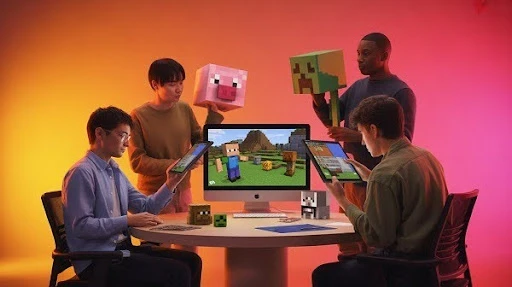
Papercraft is a sneaky production tool. It’s fast, physical, and it reveals design issues instantly.
If you’re producing a short promo clip, paper props can also be a practical alternative to modeling and rendering, especially for quick social content. That’s a real use case for animation services in Los Angeles, where teams are constantly balancing speed, cost, and visual punch.
Frequently Asked Questions
Final Word
The simplest path to 3D paper models is still skins and blocks. The most satisfying path is exporting your own build and unfolding it into parts you can actually assemble. Mineways gets your Minecraft structure into a real 3D file. Pepakura turns that into printable nets. The rest is smart simplification and clean assembly habits.
If you want these to look professional, treat the build like a production asset: fewer parts, cleaner seams, and finishing that protects the print.
Related Articles: