

This Blender donut tutorial is for people who want a donut render that looks edible, not like a rubber ring with a pink shader slapped on top. We’re going to model a donut base, build a glaze that has real thickness, and add the small imperfections that sell “freshly fried.” I’m writing this for Blender 4.x and up (4.5 LTS is a solid baseline if you like stability).
Setup: Start Clean and Set Units Once
Do this first so you don’t fight scale later.
- Open a new file.
- Delete the default cube, camera, and light (A → X).
- In Scene Properties → Units, set:
- Unit System: Metric
- Unit Scale: 0.001 (so 1 unit = 1 mm), or keep default and just be consistent.
- Unit System: Metric
If you’ve ever worked with 3D modeling services, you’ll recognize this habit: the fastest way to ruin “realism” is building at random scale, then trying to fix materials and lighting afterward.
Model the Donut Base: Torus, Then Make It Less Perfect
Add the torus
- Shift + A → Mesh → Torus
- In the Add Torus panel (bottom left), use a clean starting point:
- Major Segments: 60
- Minor Segments: 20
- Minor Radius: 0.45–0.55
- Major Segments: 60
Right-click → Shade Smooth.
Add modifiers for a soft, baked shape
Add these modifiers in this order:
- Subdivision Surface
- Levels Viewport: 2
- Render: 3
- Displace (optional, but great for subtle unevenness later)
- Leave it for now; we’ll come back after materials.
- Leave it for now; we’ll come back after materials.
Donuts aren’t machined parts. Even before glaze, they should feel slightly lumpy and handmade.
Give it “fried dough” asymmetry
Switch to Sculpt Mode and keep it simple:
- Use Grab to nudge a few spots outward.
- Use Inflate lightly in a couple areas to suggest air pockets.
- Avoid the center hole area; keep that cleaner so the donut still reads as a torus.
Do not overdo it. If you can see your sculpting from ten feet away, it’s too much.
Build the Glaze: Duplicate, Mask, Solidify
The glaze is where most “fake donuts” fall apart. The big mistakes are:
- Zero thickness
- Edges that look like a perfect CAD ring
- Glaze that intersects the dough or floats above it
Duplicate the donut
- Select the donut base → Shift + D → right-click to drop it in place.
- Rename it Glaze in the Outliner so you don’t get lost.
Make it a top layer, not a full shell
You have two clean options:
Option A (fast): Edit Mode → select lower faces → delete them.
Option B (cleaner): Use a modifier workflow (Mask / Vertex Group), but that’s more steps.
If you’re new, Option A is fine.
Add thickness with Solidify
On the Glaze object:
- Add Solidify
- Thickness: 0.8–2.0 mm (depends on your scale)
- Offset: -1 (so it grows inward and hugs the donut)
- Thickness: 0.8–2.0 mm (depends on your scale)
Make the glaze edge look “melted,” not cut
This is the realism trick people skip.
- Add Subdivision Surface (after Solidify)
- Sculpt Mode
- Use Grab and Smooth along the glaze edge.
- Pull a few drips downward. Keep them subtle.
- Use Grab and Smooth along the glaze edge.
If you want it to look like it sat for two minutes and started to slump, you’re in the right zone.
Dough Material: Stop Making It One Flat Brown
A donut reads as real when the surface has micro variation. Even a simple shader can do that.
Base shader
On the donut base, create a new material:
- Principled BSDF
- Base Color: warm golden brown
- Roughness: 0.5–0.7
- Specular: default is fine
- Base Color: warm golden brown
Add micro texture (the “not plastic” step)
In the Shader Editor:
- Add a Noise Texture
- Feed it into a Bump node
- Plug Bump into Normal of Principled
Suggested starting values:
- Noise Scale: 25–60
- Bump Strength: 0.05–0.12
Keep bump subtle. You’re aiming for “fried surface,” not volcanic rock.
Optional: a tiny color breakup
Add a ColorRamp after the Noise and slightly shift the tones warmer and cooler. That helps the donut look toasted, not uniformly painted.
Glaze Material: Shiny, But Not Mirror Gloss
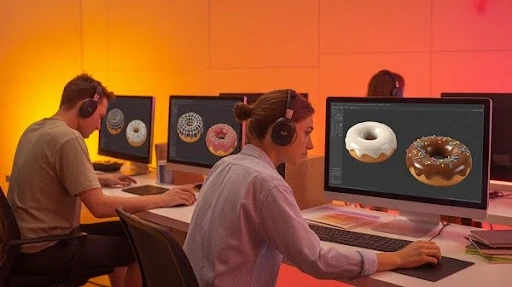
Glaze should catch highlights, but it should still have tiny irregularities.
Base glaze shader
On the Glaze object:
- Principled BSDF
- Base Color: pick your glaze color (pink works, chocolate works, maple works)
- Roughness: 0.25–0.35
- Clearcoat: 0.2–0.4 (optional, but nice)
- Base Color: pick your glaze color (pink works, chocolate works, maple works)
Add subtle surface wobble
Use a different Noise Texture than the dough:
- Noise Scale: 80–150
- Bump Strength: 0.02–0.06
Glaze bump should be gentler than dough bump. Think “soft ripples,” not “pitted texture.”
Make the Contact Between Dough and Glaze Look Real
Here’s a quick visual check that saves you from a “floating glaze” look:
- In the viewport, orbit around the donut and look at the edge where glaze meets dough.
- If you see daylight (a gap), increase Solidify thickness slightly or nudge the glaze inward.
- If the glaze clips through the dough, reduce thickness or adjust Offset.
A clean contact line is one of those small details that separates a portfolio render from a quick exercise. It’s the same standard any animation studio expects when a still frame needs to hold up under scrutiny.
Make 3 Sprinkle Types You Can Reuse Forever
You want variety without extra work. Make three sprinkle meshes and keep them in a “Sprinkles” collection.
Sprinkle A: Classic rod
- Shift + A → Mesh → Cylinder
- Scale it down into a tiny capsule shape
- Add a Bevel modifier (2–3 segments) so it’s not a hard tube
- Slightly bend it with a Simple Deform modifier (Bend, very low angle)
Sprinkle B: Short chunk
Duplicate Sprinkle A and scale it shorter, like a chopped rod.
Sprinkle C: Flat confetti
- Add a thin cube
- Bevel the edges lightly
- Randomize its scale slightly so it doesn’t look like copy-paste confetti
Keep these low poly. Instancing will do the heavy lifting later.
Scatter Sprinkles with Geometry Nodes
Geometry Nodes is the cleanest way to scatter sprinkles in modern Blender, and it stays art-directable.
Node setup on the Glaze object
- Select Glaze → Add Modifier → Geometry Nodes
- Build this chain:
- Distribute Points on Faces → Instance on Points → Realize Instances (optional) → Group Output
The Distribute Points on Faces node places points on the surface and transfers attributes like vertex weights, plus it outputs Normal and Rotation.
Instance on Points is the node that adds your sprinkle geometry to those points efficiently.
Add the sprinkle collection
- Add Collection Info node
- Choose your “Sprinkles” collection
- Turn on Separate Children and Reset Children
Then connect Collection Info → Instance on Points (Instance input).
If your Blender version shows “Pick Instance” on Instance on Points, enable it so it randomly chooses between Sprinkle A, B, and C.
Starting values that look believable
- Distribute Points on Faces:
- Method: Poisson Disk
- Density: start around 400–900 (depends on scale)
- Minimum Distance: small but not zero (prevents clumps)
- Method: Poisson Disk
Paint Where Sprinkles Can Land
This is how you avoid sprinkles on drips, sides, and weird spots without a math headache.
- Select Glaze → Object Data Properties → Vertex Groups
- Create a group called SprinkleMask
- Weight Paint:
- 1.0 on the top surface
- Fade to 0 near edges and drips
- 1.0 on the top surface
Back in Geometry Nodes, use the mask to control distribution.
Because Distribute Points on Faces transfers vertex weights to generated points, you can drive density and selection from the weight paint.
Practical approach:
- Use a Named Attribute node (name it SprinkleMask)
- Use a Compare node to keep points where weight > 0.2
- Plug that into the Selection input of Distribute Points on Faces
Now you get sprinkles where you painted them. No edge chaos.
Build Quick Variants Like a Mini Product Configurator
Once your sprinkles are procedural, you can create variations fast, which is basically the same idea as 3D product configuration. One base asset, multiple looks, no duplicate files.
Easy variation switches:
- Glaze color: one slider or a few preset materials
- Sprinkle palette: swap materials on the sprinkle meshes
- Density: one number in Geometry Nodes
- “Party donut” vs “minimal donut”: toggle sprinkles on/off by driving the Selection threshold
This is also why procedural workflows are showing up in top animation trends right now. Teams want more versions without rebuilding assets from scratch.
Light It Like Food, Not Like a Tech Demo
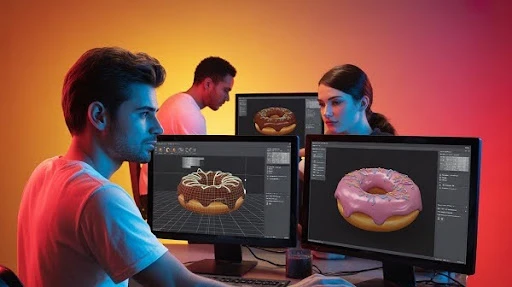
A donut render lives on highlights. You want soft, controllable reflections and a gentle falloff into shadow.
Simple three-light setup
- Key light: Area Light, large, slightly above and to the side
- Fill light: weaker Area Light on the opposite side
- Rim light: small Area Light behind to catch glaze edges and sprinkles
If you use an HDRI, keep it subtle and let area lights do the shaping.
This is the part where a good 3D animation studio makes the difference in portfolio pieces. Materials can be perfect, but without clean highlights, everything reads flat.
Cycles Settings That Render Fast Without Looking Crunchy
Adaptive Sampling
Cycles supports adaptive sampling and a Noise Threshold, with typical values ranging from 0.1 down to 0.001 depending on quality needs.
For a close donut shot:
- Adaptive Sampling: ON
- Noise Threshold: start around 0.01, push lower if needed
- Samples: don’t obsess, let the threshold do the work
Denoise properly
If you want extra control, denoise in compositing. Blender’s Denoise node uses Open Image Denoise and can take Albedo and Normal passes for better detail retention.
Quick workflow:
- Enable the denoise data passes
- In Compositor: Denoise node with Image + Albedo + Normal
Camera Depth of Field That Looks Photographic
A tiny amount of depth of field makes food renders feel real, but too much makes the donut look like a toy.
Blender’s camera settings let you control Depth of Field with F-Stop, where lower values increase blur.
Suggested setup:
- Focal Length: 60–90mm range
- Focus on the front edge of glaze or one sprinkle cluster
- F-Stop: start around 2.8 to 5.6 and adjust gently
You want “subtle focus,” not “everything is mush.”
Final Look Without Overcooking It
Use Blender’s Color Management wisely. The default Filmic transform is designed to handle high dynamic range and map it to what displays can show, and it’s built for a film-like roll-off in highlights.
What to do:
- Keep Filmic on
- Adjust exposure slightly instead of cranking lights
- If your glaze looks blown out, lower exposure first before touching roughness
Your donut should look bright and appetizing, but highlights should still have detail.
Optional 5-Second Turntable for Your Portfolio
If you want a quick “this is real” flex:
- Animate a slow 360-degree rotation
- Add a tiny camera push-in
- Keep the lighting stable
This is where small polish moves translate into marketing value, and it’s also where character animation services logic applies, even for objects. Smooth timing and clean arcs make the shot feel intentional.
Frequently Asked Questions
How do I stop sprinkles from spawning on the donut edges and drips?
Weight paint a SprinkleMask vertex group on the glaze top and feed it into the Selection input so points only generate where the mask is strong.
Why does my donut dough look like smooth plastic in Cycles?
Your surface needs micro variation. Add subtle bump from Noise Texture, and add slight roughness variation so highlights break up instead of looking flat.
What Cycles Noise Threshold should I use for a close-up food render?
Start around 0.01 for speed, then lower toward 0.005 or 0.001 if you still see noise in glossy glaze areas.
What Blender setting helps keep highlights from blowing out on shiny glaze?
Use Filmic in Color Management and adjust exposure first. Filmic is designed to map bright values more naturally than a straight display transform.
Final Words
A realistic donut render isn’t about one magical shader. It’s the stack: believable micro texture, glaze thickness with imperfect edges, sprinkles that follow art direction, and lighting that gives the surface something to reflect. Once you build it this way, you can generate endless variations without rebuilding the model.
Related Articles: